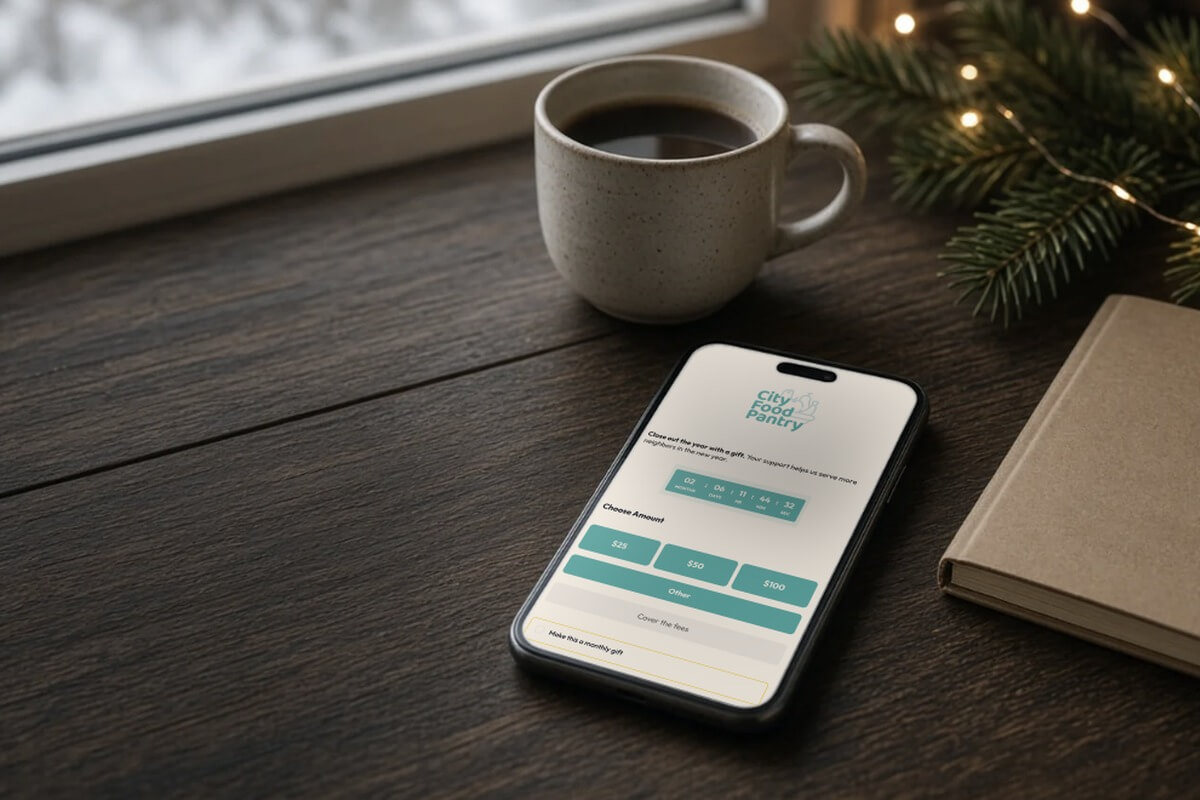
To get your giving page ready for year-end giving, make the form fast and simple on a phone, suggest amounts tied to real impact, offer monthly giving and a cover-the-fee option, turn on Apple Pay and Google Pay, state the December 31 deadline clearly, and test every link before GivingTuesday on December 1, 2026.
Year end is when your page matters most.
According to the 2026 M+R Benchmarks Study, "Nonprofits received 37% of all 2025 online revenue in December. The last day of the year accounted for 4% of annual revenue."
Small fixes made now pay off across that whole window.
This checklist covers the page and form changes nonprofits, churches, campaigns, and schools can make in the next few weeks, with steps for doing each one in Anedot.
The year-end giving page checklist

1. Build for the phone first

Why it matters: Your year-end donors will mostly arrive on a phone, and phones still convert worse. The 2026 M+R Benchmarks Study found "Mobile users accounted for 52% of all traffic, but 43% of donation transactions and just 28% of revenue." It also found "11% of desktop users who landed on a primary donation page completed a gift, compared to 8% for mobile users. Small nonprofits had especially low conversion rates for mobile users, just 4%."
How to do it:
- Test on your own phone: Open the page on an iPhone and an Android phone, on cellular data, and make a small gift from start to finish.
- Keep the ask near the top: Your headline, one sentence about the need, and the amount buttons should show before the donor scrolls.
- Use one column and large buttons: Thumbs need room. Avoid side by side fields that shrink on small screens.
- Link straight to the giving page: Send email, text, and social traffic to the donation page itself, not to a web page where the form sits below other content.
In Anedot: Anedot recommends sharing the hosted page link rather than embedding the form in an iFrame. Per the Donation Page Builder guide, "PayPal, Apple Pay, Google Pay, and Bitcoin are unavailable with embedded pages" and "Supporters may experience errors accessing an embedded page from mobile devices."
2. Cut fields to the minimum

Why it matters: Every extra field adds typing on a small screen and another chance for the donor to put the phone down. Ask for what you need to process the gift, send the receipt, and follow up. Save everything else for later.
How to do it:
- Audit every field: For each one, ask who uses the answer and what they do with it. If nobody can say, remove it.
- Make phone optional: Unless you text donors, a phone number does not need to be required.
- Move survey questions: Ask "How did you hear about us?" on the thank-you page or in a follow-up email instead.
- Keep required compliance fields: Campaigns should keep the fields their compliance team requires.
In Anedot: Fields are managed in the Form tab of the Donation Page Builder. Email is required by default and can't be turned off, because it's used to send the donor's email receipt. Phone can be set as optional or required. For donors you already know, URL parameters such as first_name, last_name, and email can prefill fields from links in your emails.
3. Suggest amounts and anchor them to impact
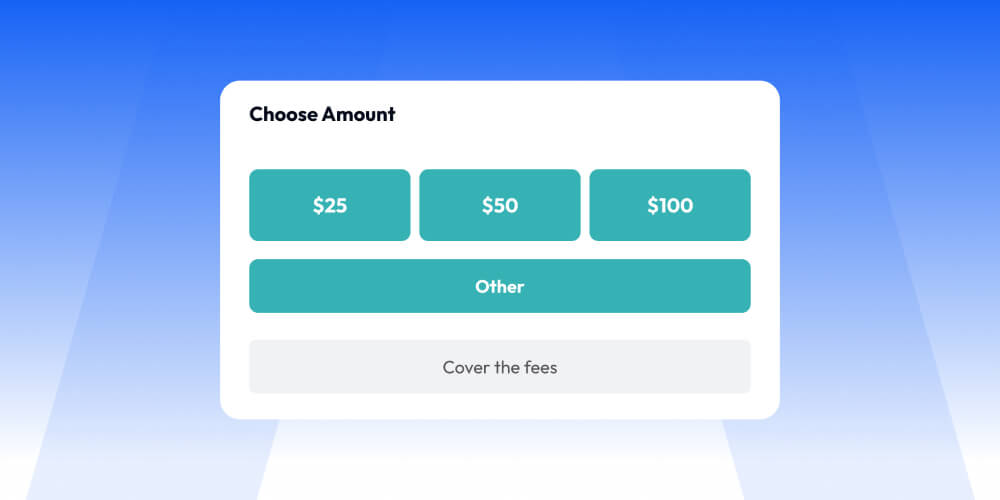
Why it matters: Suggested amounts give donors a clear, confident choice, and impact lines show what each gift does. They're also common: NextAfter's 2025 audit of what 138 organizations do on their donation pages found that "66% of donation pages feature" preselected or popular amount callouts, according to the 2025 Recurring Giving Benchmark Report That tells you what peers do, not proof of what works, so test your own amounts.
How to do it:
- Use your real gift history: Base three to five amounts on what your donors actually give, then nudge the middle option up slightly for year end.
- Tie amounts to outcomes: Write a short line for each amount that names a real result, based on your real program costs.
- Feature one amount honestly: Only label an amount "Popular" if it really is your most common gift.
- Keep an Other option: Some donors already know what they want to give.
- Set lower monthly amounts: A monthly ask should feel easy to say yes to.
In Anedot: In the Finance > Amounts tab of the Donation Page Builder, click Enable Presets and $25, $50, $100, and $200 auto-populate as Preset Amounts. You can edit them, add a Description with the Note icon, and highlight a Featured Amount with a Star icon and an optional Popular label. An Other button is included by default. Turn off the Apply to all presets toggle to set different amounts for each frequency. The Impact content block in Design > Content shows supporters the impact of their gifts; it's visual only and doesn't change the amount processed.
4. Ask for a monthly gift
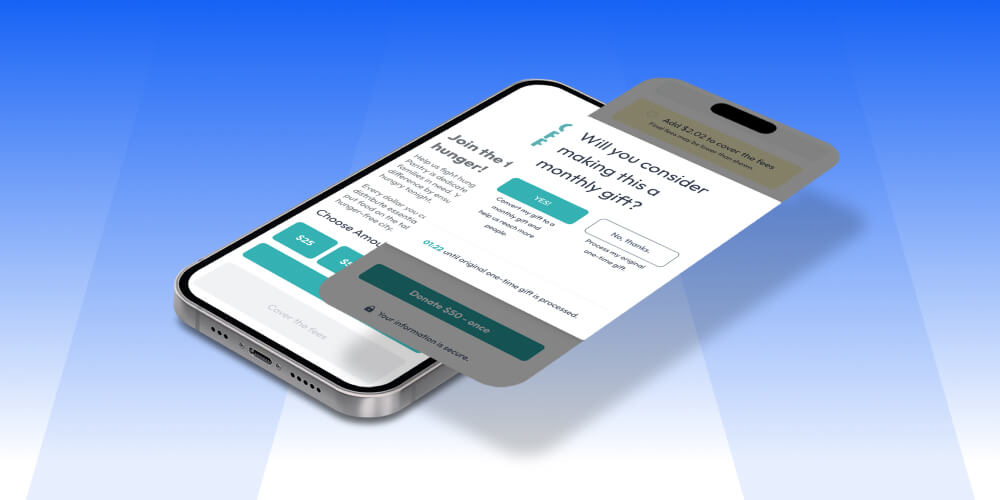
Why it matters: Monthly donors keep giving after the holidays. The 2026 M+R Benchmarks Study reports "Monthly giving accounted for 27% of all online revenue in 2025," and "after a full year, 71% of sustainers are still active." Many pages still lead with one-time giving: in the 2025 M+R Benchmarks Study, "One-time giving was the pre-selected option on the main donation page for 62% of nonprofits, though 90% included monthly giving as an option." To keep a monthly program growing after launch, listen to Dave Raley on Nonprofit Pulse, Anedot's podcast, in the episode on why recurring giving programs stall.
How to do it:
- Make monthly visible: Show it as a clear choice next to one-time, not hidden in a dropdown.
- Ask at the right moment: A short prompt after the donor picks a one-time amount, suggesting a smaller monthly gift, is a low pressure way to ask.
- Use a year-end angle: "Start in December and keep helping all year" gives a reason to choose monthly now.
- Ask again on the thank-you page: NextAfter's audit found "Only 14%" of organizations "ask for a recurring donation on the confirmation (thank you) page," per the 2025 study.
In Anedot: In Finance > Amounts, choose up to four Frequency Options from Once, Every week, Every other week, Every month, Every quarter, Twice a year, and Once a year. When Once and Monthly are both on, you can show a monthly checkbox with a Recurring Upgrade Banner. In Workflows > Upgrades, a Pre-conversion Upgrade asks donors to commit to a monthly gift for a percentage of their one-time amount before they submit, with a minimum and maximum you set (see the Donation Page Builder guide). The Feature Summary lists a Credit Card Updater that automatically updates expired or replaced cards to keep recurring gifts going.
5. Offer a cover-the-fee option

Why it matters: Many donors want the full amount of their gift to reach your mission. A clear, optional checkbox lets them choose that without surprises at checkout.
How to do it:
- Keep it optional: Let the donor decide. Don't make it feel like a toll.
- Use plain words: For example, "Add a little to cover processing costs so the full gift reaches us."
- Show the amount: Donors should see exactly what they're adding before they give.
In Anedot: Donor Covers Fees can be turned on page by page for Donation and Event Pages in Finance > Payment inside the builder. Covered fees show up crossed out with a Person icon in Finance > Transactions, and CSV exports include Donor Covered Fees columns. Political organizations should check with a compliance officer first, since the help center notes it "can complicate reporting and donation limits." Anedot has no setup fees, no monthly fees, and no contracts; current transaction rates are on the Anedot pricing page.
6. Turn on express pay and digital wallets
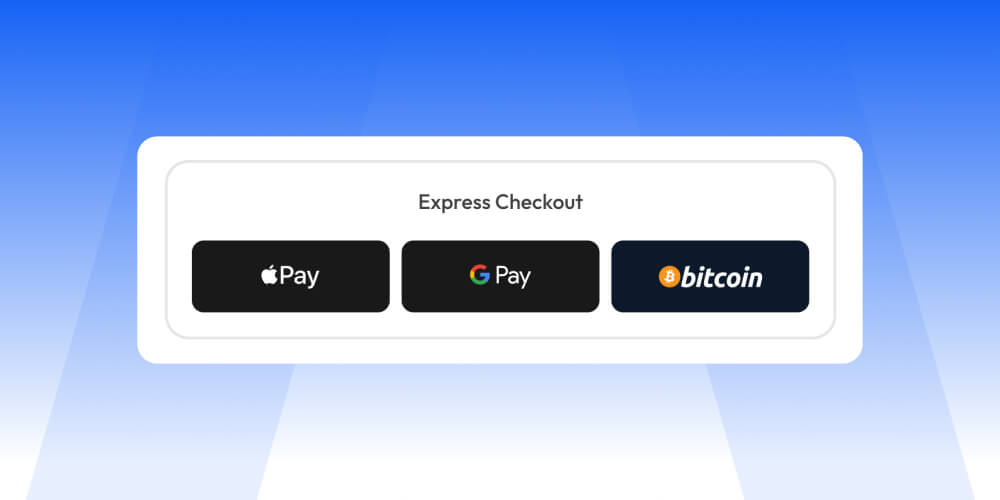
Why it matters: On a phone, a wallet button can replace typing a card number and address. Wallets are now common on donation pages: the 2026 M+R Benchmarks Study found "Google Pay (58%), Apple Pay (57%), and Venmo (44%) were also common" payment options on nonprofit donation pages, alongside PayPal at 79%.
How to do it:
- Show wallets where donors see them: On mobile, wallet buttons should be visible without hunting.
- Keep cards and bank options too: Not every donor uses a wallet.
- Test each one on a real device: Make a small gift with Apple Pay on an iPhone and Google Pay on Android.
In Anedot: Per the Payment Methods article, Apple Pay is "available to all Anedot customers, no setup required" and appears automatically on eligible Apple devices using Safari. Google Pay and PayPal are enabled by default. Wallets don't work inside embedded iFrame forms; supporters are redirected to a hosted page to finish. You can turn any method off in Finance > Payments in the builder.
7. Make the page load fast

Why it matters: The 2026 M+R Benchmarks Study measured an average donation page speed index of 3 seconds on desktop and 12 seconds on mobile. M+R uses a new measurement method this year, so these numbers aren't comparable with earlier editions. The takeaway is simple: phones load your page much slower than your office computer does.
How to do it:
- Compress your images: One strong, compressed photo is enough at the top of the page.
- Skip autoplay video above the form: If you use video, keep it short and below the ask.
- Remove unused tracking scripts: Keep the pixels you actually use and remove the rest.
- Test on mobile: Run the page through Google PageSpeed Insights using the mobile setting.
- Cut extra redirects: Link straight to the page rather than through several shorteners or redirects.
8. State the year-end deadline clearly, without giving tax advice
Why it matters: Many donors plan gifts around December 31. M+R reports that the last day of the year alone "accounted for 4% of annual revenue" in 2025, and "The last week of the year accounted for 10% of annual revenue." Clear deadline wording helps donors act in time.
How to do it:
- Name the exact deadline: For example, "Give by 11:59 PM Central on December 31 to make your 2026 gift." Use your own time zone.
- Say what donors receive: Tell donors they'll get an email receipt right after they give.
- Leave tax advice to the pros: If your organization can issue tax receipts, use wording your accountant or counsel has approved, and suggest donors talk with their tax advisor about their situation.
- Campaigns skip tax language: Political contributions aren't tax deductible, so campaign pages should leave out tax messaging entirely.
In Anedot: Your account timezone sets the timestamps for transactions and reports; check it under Settings > Setup > Timezone before December. Disclaimer language can be set at the Fund level in Settings > Finance > Funds so it applies to every page tied to that Fund. In January, Donor Statements summarize each donor's giving for the year; for 501(c)(3) organizations, a Tax Deductible column is included. Statements can only be sent once per calendar year, so send them after your December gifts are in.
9. Prompt for matching gifts

Why it matters: Some donors work for employers that match charitable gifts, and many don't think to ask. A simple prompt on the page and in the receipt can remind them. There's no strong public benchmark yet on how much a matching prompt changes results, so treat it as a low effort test.
How to do it:
- Add one line near the form: For example, "Does your employer match gifts? Check with HR after you give."
- Follow up in the receipt: Include short instructions for submitting a match.
- Name real matches only: If a board member or local business is matching gifts, state the real amount and the real deadline.
In Anedot: Add an optional Yes or No Question custom field in the Form tab, such as "Does your employer match gifts?", and add matching instructions to your receipt message in Setup > Receipt (see the Donation Page Builder guide).
10. Use urgency honestly
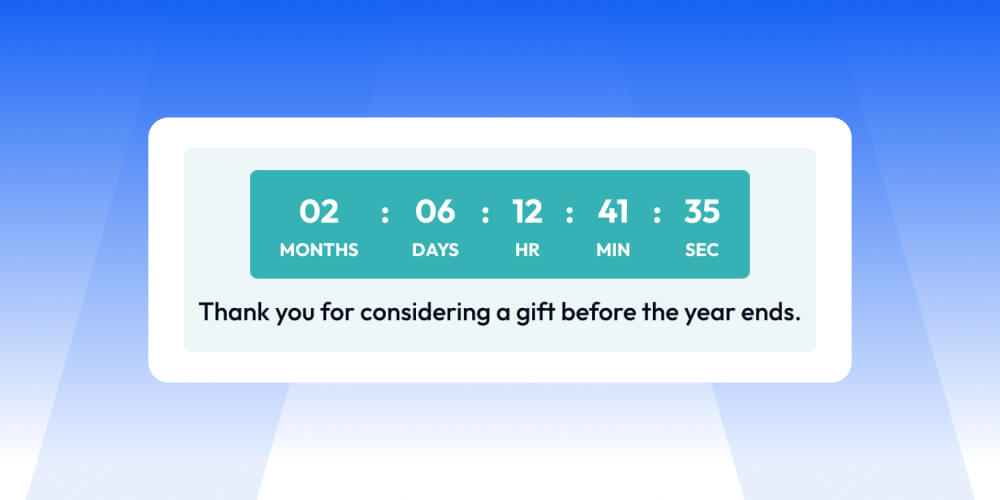
Why it matters: GivingTuesday, December 31, and a real matching challenge are true deadlines, and donors respond to them. Invented deadlines and "last chance" emails that keep coming after the deadline wear down trust.
How to do it:
- Count down to real dates only: GivingTuesday on December 1 and December 31 at midnight are real.
- Show real progress: A goal meter should reflect real gifts. When you hit the goal, say so and raise it honestly.
- Update copy on January 1: Remove deadline language once the deadline passes.
In Anedot: Set an Initial Goal in Settings > Sharing > Page Specific Values to show a Goal Tracker that updates in real time with completed donations; you can add External Amounts for offline gifts. The Timer content block sets a countdown, but it doesn't turn the page off at zero, so remove or update it afterward. An Exit Intent popup can show a short message when a supporter tries to leave before giving (see the Donation Page Builder guide).
11. Brand the page so it feels trustworthy
Why it matters: Donors give where they feel safe. NextAfter's audit of 138 organizations found "62% of organizations display a security indication near the credit card payment section" while "38%" do not, per the 2025 study. That shows a common gap, not proof of impact, but reassurance near the payment fields costs nothing.
How to do it:
- Match your email and website: Same logo, colors, and voice as the message the donor just clicked.
- Use a real photo: Show the people or place the gift supports. If you add video, the Nonprofit Pulse episode with Pat Taggart on nonprofit video storytelling shares how to tell those stories well without a big budget.
- Reassure near payment: A short line about secure processing near the card fields helps.
- Remove distractions: Drop extra navigation and links that pull donors away from giving.
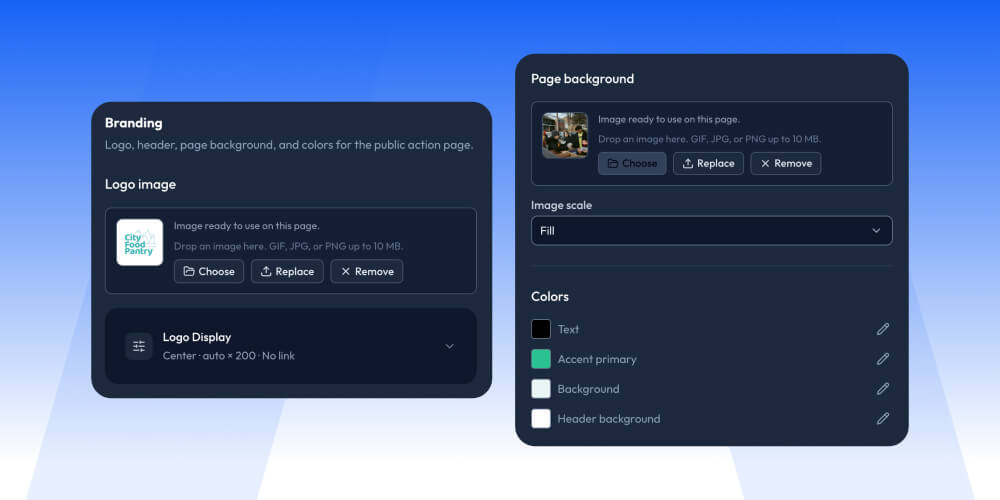
In Anedot: Brand Elements let you set your Public Account Name, logo, and favicon across Action Pages and receipts. A custom domain such as give.yourdomain.org is free; the help center notes Anedot "found no impact on conversion rates between default and custom URLs," so choose one for branding or ad tracking needs. The Anedot pricing page states Anedot "is PCI DSS compliant and SOC 2 certified."
12. Upgrade the thank-you page and receipt
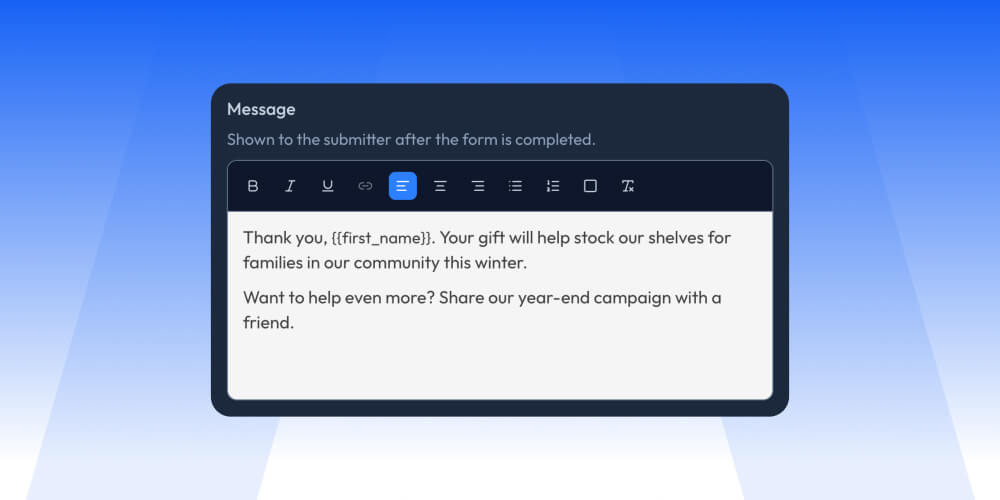
Why it matters: The moment after a gift is your best chance to keep a new year-end donor. A warm, specific thank-you and a clear next step set up the second gift.
How to do it:
- Thank right away: Say what the gift will do in plain, specific words.
- Offer one next step: Share the page, start a monthly gift, answer a short survey, or join an event. Pick one.
- Make the receipt complete: Include your organization's name, the amount, the date, and any approved tax wording.
- Follow up personally: A short note or call from a leader within a few days goes a long way. For more ways to keep year-end donors giving, hear James Misner on the Nonprofit Pulse episode about how to improve donor retention.
In Anedot: After a successful gift, donors go to a Confirmation Page and get an Email Receipt. In Setup > Receipt you can add a logo, a custom message, and variable tags such as first_name and donation_amount, or set a Callback URL to send donors to your own thank-you page. Post-conversion Upgrades can send donors to another Action Page after they give, such as a Lead Page survey, which collects information without processing a donation (see the Donation Page Builder guide).
13. Add text to give and QR codes
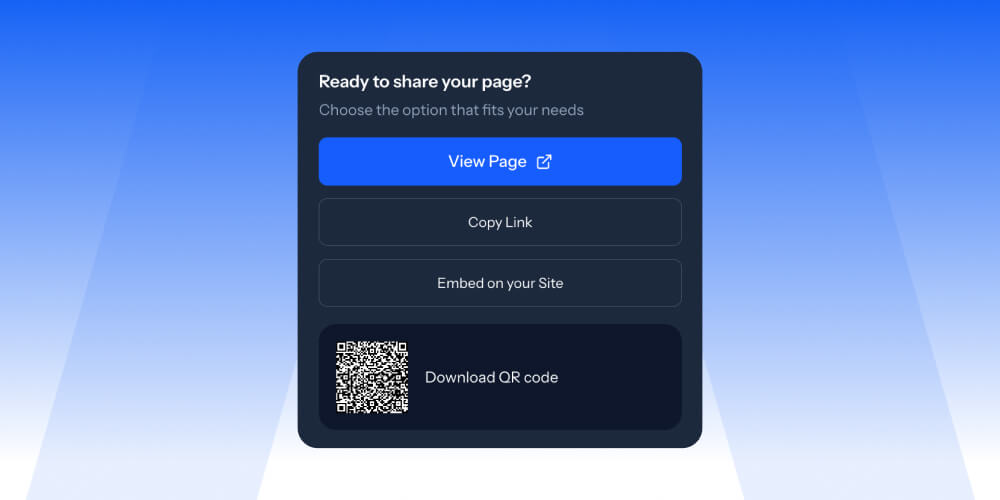
Why it matters: Year end brings in-person moments: holiday services, school concerts, and events. Text to give and QR codes send people straight to your mobile page.
How to do it:
- Pick a short keyword: Make it easy to say from a stage and easy to spell.
- Put the QR code everywhere: Bulletins, screens, programs, and table cards.
- Point both at a mobile tested page: The page they land on should pass the phone test from step 1.
In Anedot: SMS Keywords are Anedot's free text-to-give feature. Each account can set up two keywords, each linked to a Donation Page, under Settings > Configuration > SMS Keywords. You can also download a QR code for any Action Page from the sharing options.
14. Test and track every link

Why it matters: The year-end window is short. If a link breaks or tracking fails on December 1, you may not find out until January.
How to do it:
- Tag every link with UTMs: Use utm_source, utm_medium, and utm_campaign on every email, text, social post, and ad, with one campaign name for the season, such as utm_campaign=year-end-2026.
- Confirm GA4 records gifts: Make a test gift and check that it shows up as a conversion.
- Test each page on each device: Give a small real gift on desktop, iPhone, and Android, then check the confirmation page and receipt.
- Check your integrations: Confirm new gifts reach your CRM and email tools.
- Watch it daily in December: Compare conversion by device and by source, and fix the weakest link first.
In Anedot: The tracking codes guide covers Google Analytics (GA4), Google Tag Manager, Meta Pixel, X Pixel, and UTM parameters. Adding your GA4 Measurement ID sends a GA4 purchase event, and Anedot pushes donation value to the dataLayer. If you use a Callback URL instead of the default receipt page, the GA4 purchase event won't fire, so use Google Tag Manager to trigger it. Use Clone to copy a working page for GivingTuesday and December 31 versions, and turn on Abandoned Actions in Workflows > Recover to email supporters who entered an email but didn't finish. Anedot connects with CRM and email tools listed in the integrations directory, with no integration fees.
Year-end timeline: what to do and when

Notes for churches, campaigns, and schools

Churches
Holiday services are a phone moment, so put a text-to-give keyword and QR code on screens and in bulletins.
Offer weekly or every other week giving to match pay cycles. If you use more than one Fund, such as general, building, and missions, Anedot can show multiple Funds on the form. Send donor statements in January, after Dec 31 gifts are in.
Campaigns
Political contributions aren't tax deductible, so leave out all tax and Dec 31 deduction messaging (see are political contributions tax deductible).
Use real deadlines, like an actual reporting deadline or a real goal, for urgency. Keep the occupation and employer fields your compliance team requires, and check with compliance before turning on Donor Covers Fees.
Schools
Use Funds for designations like the annual fund, athletics, or scholarships.
Parents and alumni may work for employers that match gifts, so the matching prompt is worth adding. Confirm your school's or foundation's tax status with your finance office before using any deductibility wording.
Get your year-end page ready

Pick three items from the checklist you can finish this week, test them on your phone, and keep going from there.
Once your January results are in, the Nonprofit Pulse episode with Krissie Kelleher on how to build an annual fundraising plan can help you map out next year.
If you'd like a giving platform that's free to start, with no contracts and no monthly fees, Anedot can help you build and test your year-end pages before December 1.
Frequently asked questions
When is GivingTuesday 2026?
GivingTuesday 2026 is Tuesday, December 1, 2026, according to GivingTuesday. Have your giving page tested and ready a few days before.
When should we update our donation page for year-end giving?
Aim to finish changes by mid November. That leaves about two weeks to test on phones, check receipts and tracking, and fix problems before GivingTuesday on December 1, then a calm December focused on messaging.
How many fields should a donation form have?
As few as you need to process the gift, send a receipt, and follow up. Make anything else optional or move it to the thank-you page. Campaigns should keep any fields their compliance team requires.
Should we let donors cover processing fees?
For most nonprofits, churches, and schools, an optional, clearly worded cover-the-fee checkbox is a simple way to let donors send their full gift to the mission. Campaigns should check with a compliance officer before turning it on.
Do Apple Pay and Google Pay work on embedded donation forms?
Often not. On Anedot, Apple Pay and Google Pay don't work inside embedded iFrame forms, and supporters are redirected to a hosted page to finish. Linking straight to the hosted donation page avoids the extra step.
What should a year-end donation page say about taxes?
State the deadline clearly, tell donors they'll get a receipt, and only use deductibility wording your accountant or counsel has approved. Don't give tax advice; suggest donors talk with their tax advisor. Campaign pages should leave tax language out, since political contributions aren't tax deductible.
How do we know which year-end emails and texts drive donations?
Add UTM parameters to every link, connect GA4 to your donation page, and make a test gift to confirm it records. Then compare gifts by source and device each week in December.
80 Community Service Ideas for Nonprofits