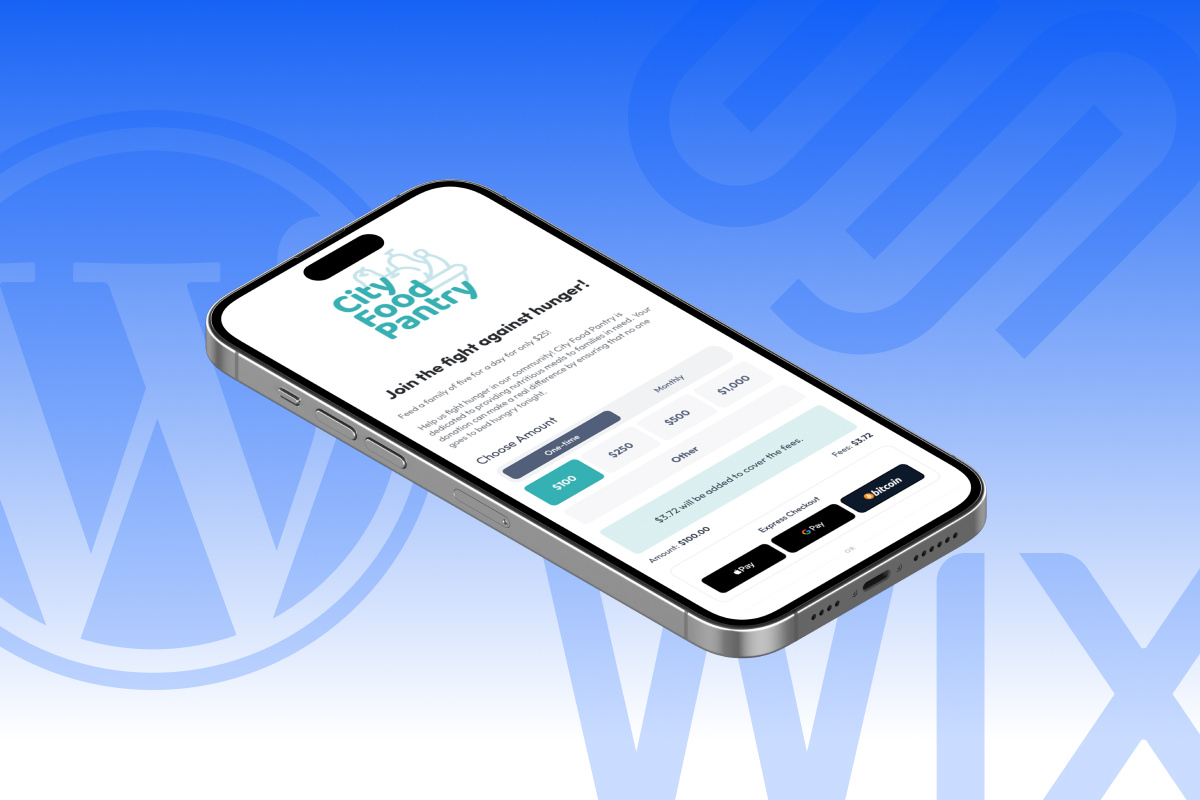
Anedot Action Pages make it easy to turn your website, email, and social media traffic into donations, signups, and registrations, no matter which CMS you use.
With a single Action Page, you can add a donate or signup experience to WordPress, Squarespace, Wix, and more in just a few minutes.
What is an Action Page?
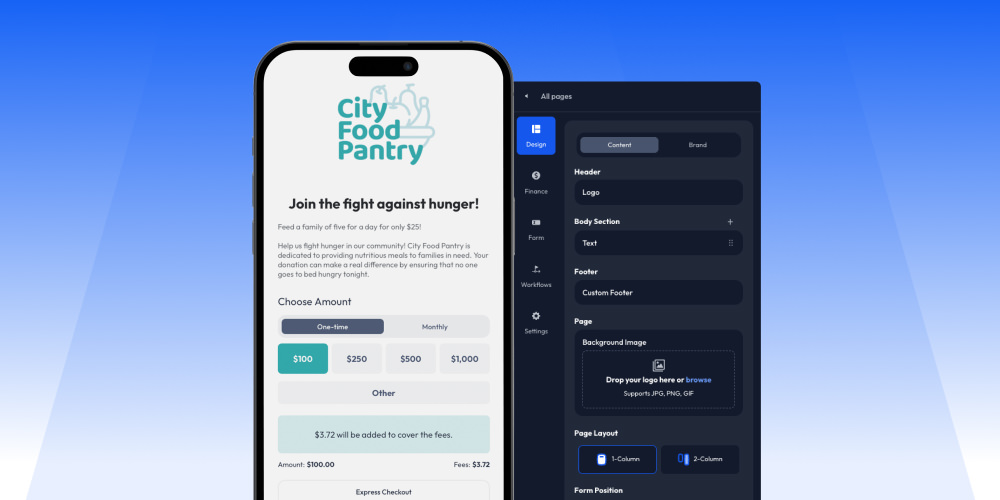
An Action Page is Anedot’s hosted page for donations, event registrations, lead capture, and surveys.
Each page has its own secure URL, optional embed code, QR code, and SMS keyword so you can share it across every channel your supporters use.
Ways to share your Action Page
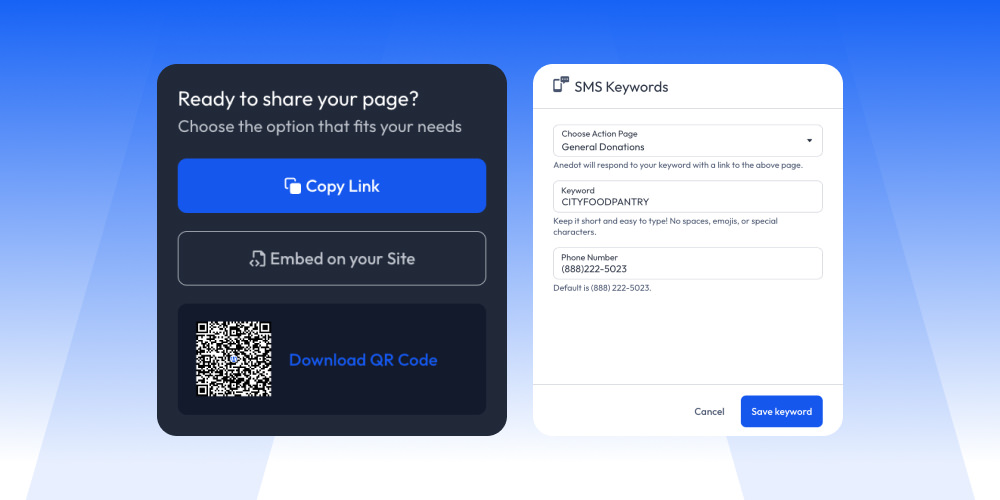
Once your page is published, you can share it in four main ways.
Most customers use a mix of these methods so supporters can give or sign up from anywhere.
- Share URL: Copy the hosted page link and use it on your website, in emails, and on social media. This is the recommended method because it uses Anedot’s fully optimized, secure checkout experience.
- Embed (iFrame): Copy the embed code to place the page directly inside your website layout. This works, but can limit payment options and may impact conversion if your site is slow or not fully mobile optimized.
- QR code: Download a ready-made QR code that links to your page for events, print pieces, and in-person campaigns. Supporters can scan from their phone’s camera and go straight to your Action Page.
- SMS Actions (Text-to-give): Assign a keyword to your Action Page so supporters can text a number and receive a direct link on their phone. Every account can create two unique keywords that each point to a different Action Page.
Start here: grab your Share URL, embed code, or QR Code
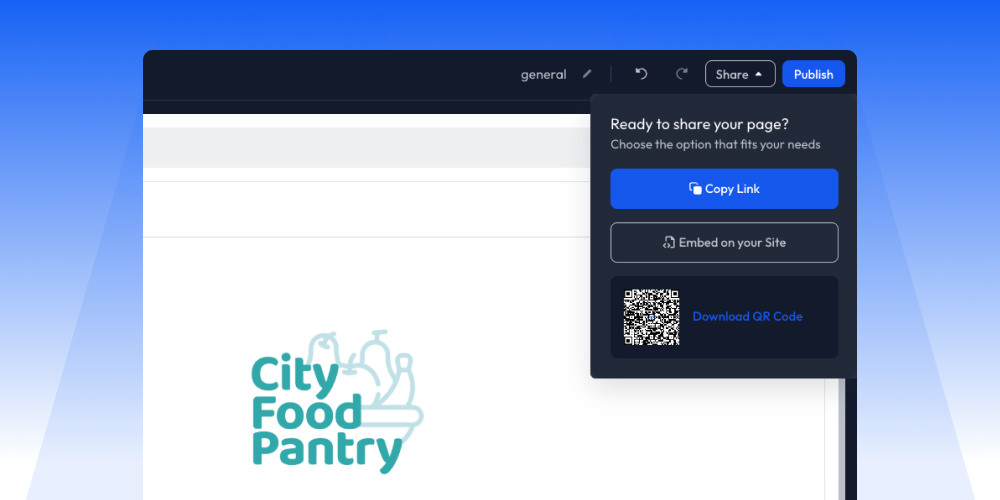
Everything starts with the Share button on your Action Page.
- From your Anedot dashboard, go to Action Pages > Pages and open your page in the Builder by choosing Actions > Edit. In the upper right, click Share to see options for the URL, embed code, and QR code.
- To use the hosted page, click Copy Link. To embed, choose Embed on your Site and copy the iFrame snippet.
- To use a QR code, choose Download QR Code to save the image and drop it into your print or slide designs.
For most organizations, the hosted Share URL is the best default choice, with embed reserved for specific design needs.
Add your Action Page to your website navigation
Most supporters will start on your website, then click a button like “Give,” “Donate,” or “Register.”
Below are simple, customer-friendly steps to connect your Anedot Share URL as a top-level navigation link in popular website builders.
Tip: Name the link clearly, like Give, Donate, or Support, and set it to open in a new tab so your site stays open alongside the Anedot page.
WordPress
You can add your Anedot link to any WordPress navigation menu using the Custom Links option.
- In your WordPress dashboard, go to Appearance → Menus (or Appearance → Customize → Menus on some sites).
- Select the menu that controls your main navigation (often “Primary” or “Main Menu”).
- In the Add menu items panel, choose Custom Links.
- Paste your Anedot Share URL into the URL field and enter your link text (for example, Donate).
- Click Add to Menu, drag it into your preferred position, then click Save Menu to publish the change.
Squarespace
Squarespace lets you add external links directly into your main navigation.
- In Squarespace, open the Pages panel from the left-hand menu.
- Under Main Navigation, click the + icon to add a new item and choose Link.
- Enter a title like Give or Donate in the Link Title field.
- Paste your Anedot Share URL into the URL field.
Toggle Open in new window if you want the page to open in a new tab, then click Save.
Wix
In Wix, you can add your Anedot URL as a menu item from the Pages and Menu panel.
- In the Wix Editor, click Pages & Menu (sometimes labeled Menus & Pages) in the left-hand sidebar.
- Click Add a Menu Item (or the + next to the menu) and choose Link.
- Select Web Address or External URL as the link type.
- Paste your Anedot Share URL, give the menu item a name like Donate, and choose whether to open it in a new tab.
- Click Done, then publish your site updates.
Other CMS platforms
Because Anedot hosts the page for you, the setup on most other platforms is very similar: you are simply adding an external link to your navigation.
- GoDaddy, Webflow, Joomla, HubSpot, WooCommerce, BigCommerce, Shopify, and others: Look for your platform’s menu/navigation settings and add a new item that links to an external URL.
- Paste your Anedot Share URL, name the item, and save/publish your changes.
- If you need help finding the exact setting, your CMS’s support documentation or support team can point you to “add external link to menu” instructions.
When to embed instead of link
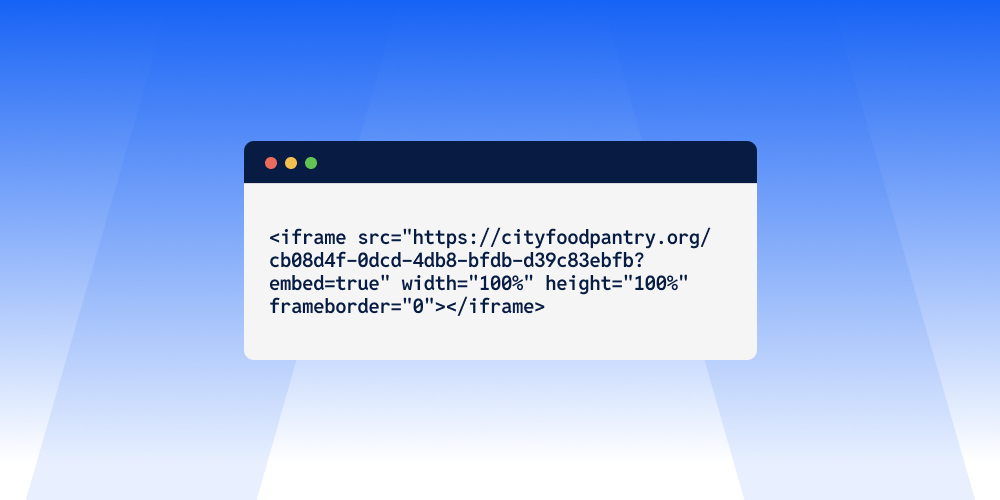
Embedding an Action Page lets supporters stay visually on your site while completing the form.
It can be useful when you want the form to appear in the middle of a content-heavy page or custom layout.
However, there are tradeoffs to embedding in an iFrame.
- Some payment options like PayPal, Apple Pay, and Google Pay are not available when a page is embedded.
- Embedded pages rely on your website’s security, speed, and mobile design, which can affect conversion if your site is slow or not optimized.
- Certain design elements and disclaimers from your hosted page may not appear automatically and might require additional HTML/CSS on your site.
→ Learn why it's better to use a hosted form on a custom domain instead of an iframe when sharing your donation page.
For most organizations, the hosted Share URL in your navigation combined with embedded forms only where they are strategically needed offers the best mix of performance and flexibility.
80 Community Service Ideas for Nonprofits