Anedot Learn session transcript ↓
Colleen:
Hey, this is Colleen with Anedot and welcome to another Anedot Learn where we help you grow your organization through giving.
Today, we're going to walk through how to build a simple, focused, high converting donation page.
There are really three elements that I want us to keep in mind when building a donation page.
Is the ask clear? Is the trust conveyed? And is the checkout process frictionless?
Our goal is to build a simple donation page designed to make it easy for supporters to give.
One thing that I like to remember when building pages is: one page, one goal, one action.
So I want us to just walk through quickly how easy it is to set up your first donation page and also show you how to clone a page.
Once we have that first donation page, it is very simple to clone our pages and edit as needed.
Customize your design and reinforce your brand
The first thing that we'll do is we'll navigate to our Action Pages tab and select All Pages.
This is where we can click New Page and we'll select our donation type here.
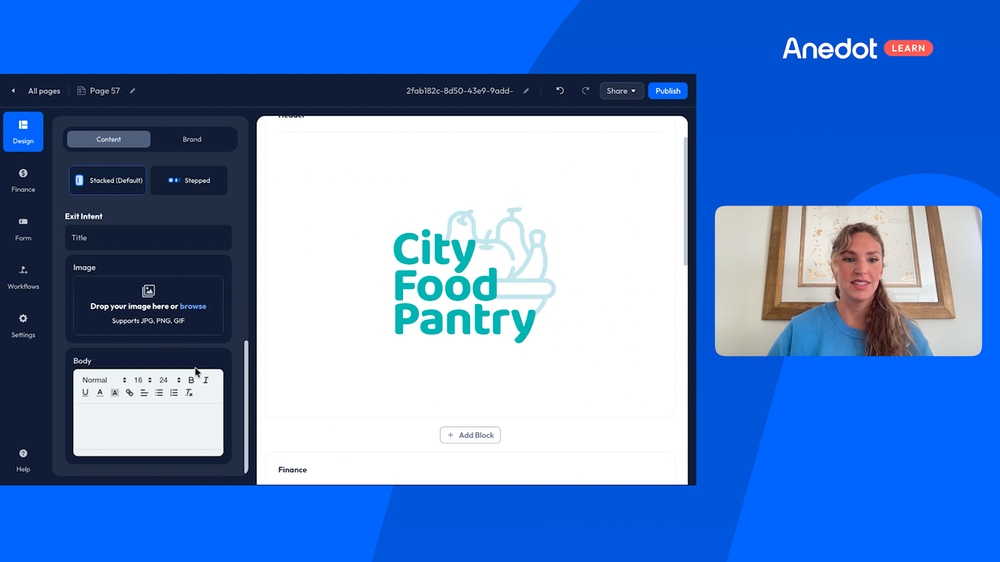
So you'll see automatically that we land on our Design tab. On the left hand side those are our different tabs that we can edit in.
And the Design tab is in simplicity kind of where people will recognize your organization or your brand.
I've heard it said that branding is a trust signal before anyone reads a word. And I really liked that because it's true.
When you look at a donation page, if you have your logo, then that's the first thing that's recognized.
And it's very easy to have those presets, if you're using them, match your logo.
So just quickly here under Content, this is where we can add our background image. If we want one, we can always just hit browse and it will pull up any images that we've used before.
Just quickly here I'm going to select an image that kind of pertains to our page and hit save.
We can scroll down here and see that the page layout is automatically 1-column center and stacked. So that's actually what we recommend. And that's the default here.
I'm just going to leave that as is. And we can add an exit intent if we want to as well as a message within that exit intent.
I'm going to leave that blank for these purposes and move over to our Brand tab.
So, here automatically we will have our default colors. So if you added a logo when you applied for the account, that will be there as well as your preset colors.
But if you ever need to, you can go in and copy and paste your hex codes, and those will carry over to your presets.
That is kind of the minimum recommendation there that you change those action buttons to match your logo or image or whatever it might be, but you can always go into the nitty gritty and edit those additional colors, as well as the font size and so forth.
Set your donation amounts

Moving over to the Finance tab. So this is the ask.
Generally we recommend that we have about four to six donation amounts. So those will be your preset amounts here.
I have four automatically. So you'll see here if I didn't have any on the page, if I click Enable Presets, it will automatically have those four.
I'm going to leave those as is because those are a great start.
But if I ever wanted to add them, I could simply add them as well as adjust the description, so you'll see here.
But for this purpose, I'm gonna leave this as is because it's a great start. And then I'm also going to star them out.
So $50 will be our kind of suggested gift here. And I'm just going to save it to the page.
I'm going to hit Publish here. And I like to set a default amount. And just remember that the default guides behavior, but it doesn't enforce it.
So it doesn't force them to give $50. But it kind of is a subtle hint there that that's a good amount to give.
I am going to leave our fund attached to our general fund automatically. It will be attached to the main fund within your account.
You can always add additional funds if you'd ever like to.
Configure payment options
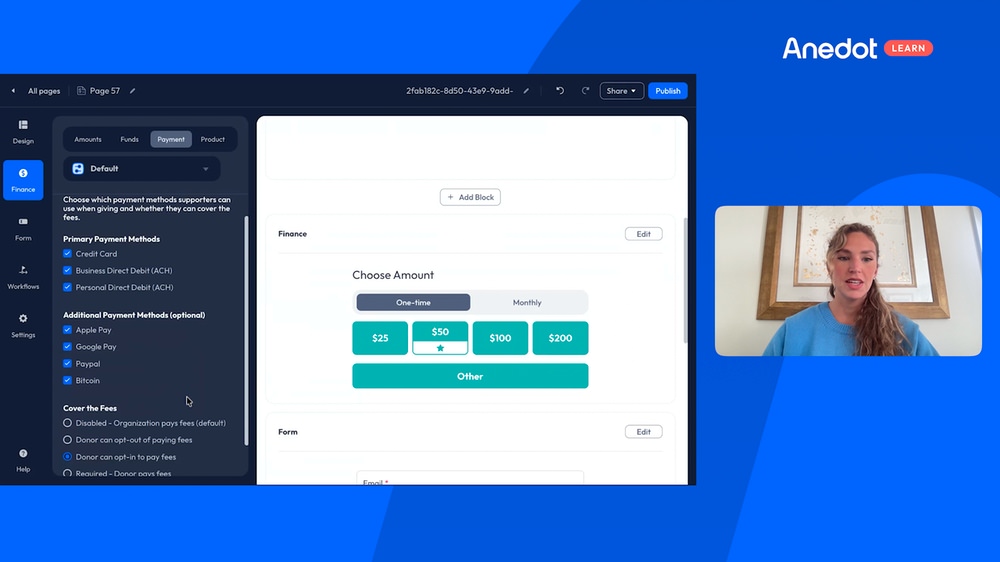
Our Payment tab, I'm going to leave all of our payment methods enabled.
This will be automatic as well except for Bitcoin. You can email us at help@anedot.com to enable Bitcoin if you'd like to.
I'm going to leave all of these options so that our supporters have all of the options and all the ways to give.
And I'm going to leave our Donor Covers Fees option as donor can opt-in to pay the fee.
So our Product tab is our Gift of Any Amount option. I am not using that for this page.
This is just a general donation page. So I'm going to leave that toggled off.
Reduce form friction
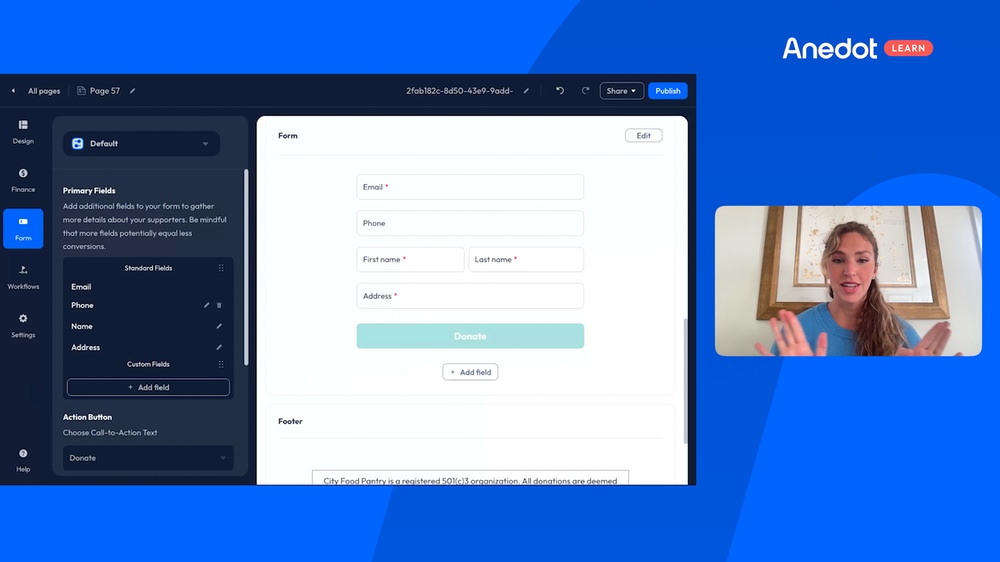
Moving along to our Form tab.
So our form fields, I suggest only collecting the necessary information so it's not adding additional friction.
So depending on the requirements of your organization you can add additional fields.
Those can be fields that are forward facing, so the supporter can actually select those and fill those out.
Or they can actually be hidden. So that could be to pass to an integration that you have set up and so forth.
I'm going to leave this as is. Keep it simple there. And I'm going to leave our Action Button as Donate as well. But that can always be changed.
You can scroll down and toggle on our communication consent as well. But I'm going to leave that off for this purpose just because that's not something that we need on this page specifically.
Write clear, impact-driven content
Going on to kind of the content of the page.
So a great rule of thumb is to keep it short. I like to have kind of one sentence headline and then a few short supporting lines on where the supporters’ dollars are going.
We want to make it clear, but we don't want to kind of overcrowd the page or give too much information.
I like this saying that donors decide emotionally and justify logically.
So we want to communicate what their dollars are going to, but we don't want to kind of lose them in the minutia of adding too many details.
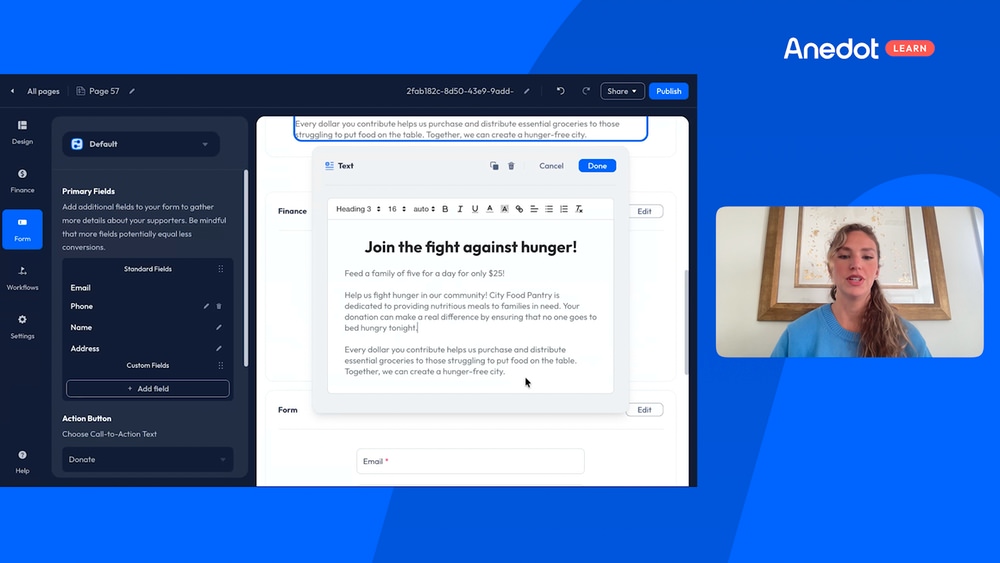
So a great example that I will give here, for our example to fight against hunger. And I will just grab that verbiage here, will be, I will just add a text block.
And I'm going to say my kind of like statement is join the fight against hunger, and I'm going to make that center, and I'm going to make that a little bit bigger than the rest.
Then you'll see here, kind of my supporting lines are feed a family of five for a day for only $25. So it's kind of communicating that impact value.
And then you'll see here it says help us fight hunger in our community.
City Food Pantry is dedicated to providing nutritious meals to families in need. Your donation can make a real difference by ensuring that no one goes to bed hungry tonight.
And then that every dollar you contribute helps us to purchase and distribute essential groceries to those struggling to put food on the table. Together, we can create a hungry-free city.
So you can see it's not too long, but it's also communicating what we want to communicate.
Encourage recurring gifts
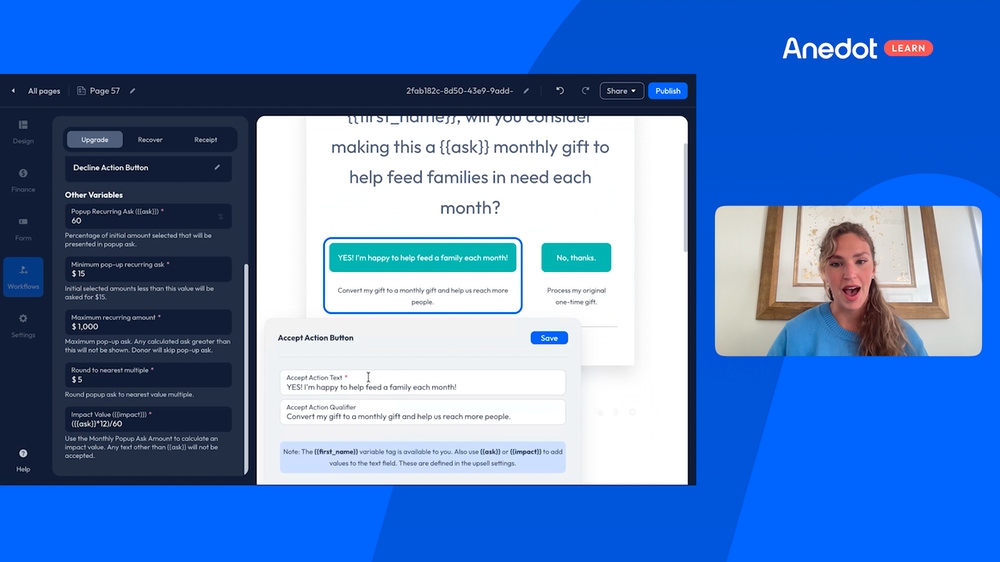
So keeping it simple. Moving along to our Workflows tab, we have our Upgrades feature.
So that will allow you to ask for a recurring gift rather than a one-time gift.
This is a great feature to explore. It's a very powerful feature.
We will actually automatically have kind of a suggested amounts, as well as a suggested message for you.
You can absolutely just add it that way. I highly recommend adding those variable tags.
So like the first name as well as the asks, so that way it's customized to the supporter as well as making sure you have a clear impact if you do decide to use those.
Customize your receipt message

So I really like here to remember that receipts reinforce trust and set up the next gift because, it's kind of, I thank you but it's also leaving the last kind of taste in someone's mouth after they give.
We want to make sure that that is customized as well and it has your organization's logo. And it's just a very clear message there.
We actually will have all of the donation details automatically included within the receipt.
So no need to worry about that.
But you can customize the message to make it very custom to the supporter and custom to your organization, which we highly recommend doing that.
And you can add those variable tags here as well.
That's a powerful tool as well to make sure that your receipt is customized and your logo is added there, as well as you have your reply email, your subject as well as your email from name.
So this is just a great space to spend a little time. And again, if you set it up one time, it's one and done.
Finalize and clone your donation page
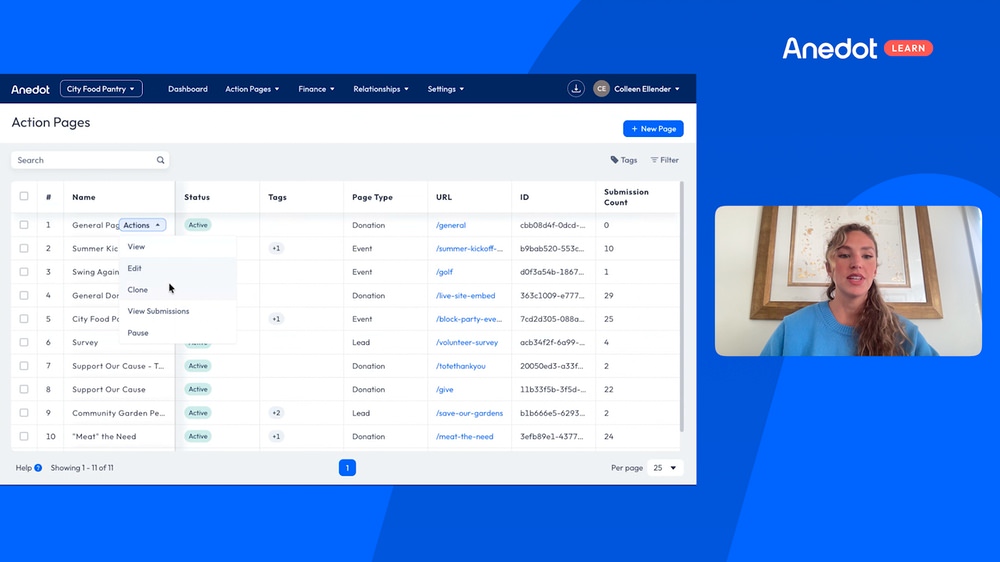
Last we have our Settings area. So this is where you could hop in and quickly just add your logo.
So that way if it's shared on socials then it's very easy to see, oh this page is for this organization.
You can add those there as your default settings, your favicon if you'd like to add it there, as well as your share settings and your share description.
For our page specific values, you can leave that as is, unless you're doing some type of source code or hidden field tracking, as well as an initial goal.
And the one thing that we don't want to forget is to name our page.
I highly recommend leaving the page very straightforward and making sure that it's clear what it's used for so that later on, if you have dozens of pages or even hundreds of pages, it's very easy to see, oh yeah, I remember what this page is for.
And I’ll just check that to save it and I will customize my slug.
That means that when I share the page, the very back of the URL will show the backslash general.
So you can see it's very straightforward to build a quick donation page. And this on the right hand side is what it will actually look like from the supporter’s perspective.
And if we ever need to, we can always click Actions and Clone.
And that will just clone that exact page. And we can tweak as needed and change as needed.
Keep it simple
So a few things to watch for is just watch for putting too many default amounts. I've seen that a few times.
Make the preset simple, keep it simple. Make sure that there's not a bunch of unnecessary fields adding friction.
Anything that feels cluttered creates doubt, so I highly recommend keeping it clean and simple.
And if it doesn't help someone to donate, it really doesn't belong on the page. So remember, you don't need a perfect page, you just need a clear one.
We have many related Anedot Learn sessions that you can check out and kind of get some fun ideas.
So thank you for watching and always feel free to reach out to us at help@anedot.com. Thank you.
→ Check out our Action Pages Gallery for inspiration to build your next donation page!
80 Community Service Ideas for Nonprofits